How to Set Up Multi-Factor Authentication for Your Business Apps
A step-by-step plan for turning on MFA across email, banking and team apps, with the right method for each kind of account.
To set up multi-factor authentication, list your business accounts, turn on MFA for email, banking and admin logins first, and pick an authenticator app or security key over text messages. Save backup codes, then require MFA for every person on the team. Start with the accounts that would hurt most if taken over.
This guide is for owners and office managers who run a small team on cloud apps and have no full-time IT person. Little iApps covers business software, and MFA is the one security setting we would switch on before any other. The steps below take about half a day for a team of 15.
What Is Multi-Factor Authentication and Why Does It Matter?
Multi-factor authentication asks for two or more proofs of identity: something you know, something you have or something you are. A password plus a code from your phone is the common pair. A stolen password alone no longer opens the account, which stops most account takeovers.
The Cybersecurity and Infrastructure Security Agency (CISA) explains that MFA protects email, billing systems and remote access even when passwords are phished or reused. Its page, More than a Password, also says that some MFA types are stronger than others, but any MFA is better than none.
For a small business, one hijacked email account can lead to fake invoices, reset links for every other tool and a locked-out owner. That is why MFA comes before nearly every other security task.
Step 1: Rank Your Accounts by Risk

List every business login you have, then rank them by damage if someone else got in. Email sits at the top, because it can reset almost everything else. Banking, payroll, accounting, your domain registrar and admin consoles come next.
If you do not have a list yet, build one first. Our guide to auditing software subscriptions before they renew gives you the spreadsheet, and the same sheet works as an MFA checklist. Add one column that says "MFA on?" and fill it in as you go.
A simple rubric helps. Mark each account high, medium or low. High means it can move money, reset other accounts or expose customer data. Medium means it holds internal files. Low means little harm if it were abused.
Work in order of risk. A shared marketing tool matters less than the email account of the person who approves payments. Finish the top five before you spend time on anything else.
Step 2: Which MFA Method Should You Choose?

Choose the strongest method each app supports, and avoid text messages where you have a choice. App-based codes and push approvals with number matching are better than SMS. Security keys and passkeys are the strongest of all, because they block fake login pages.
The National Institute of Standards and Technology (NIST) notes that one-time pins and SMS codes can be phished. Its small business guidance on multi-factor authentication points to FIDO authenticators as the most common phishing-resistant option.
| Method | Strength | Best for |
|---|---|---|
| Text message (SMS) code | Basic | Apps that offer nothing else |
| Authenticator app code | Good | Most staff accounts |
| Push with number matching | Good | Staff who log in often |
| Passkey on phone or laptop | Strong | Email and finance logins |
| Hardware security key | Strongest | Owners and administrators |
Pick one app for the whole team where you can. A single, approved authenticator app is easier to support than five different ones, and it keeps your setup guide short.
Step 3: Why Add Security Keys or Passkeys for Admin Accounts?
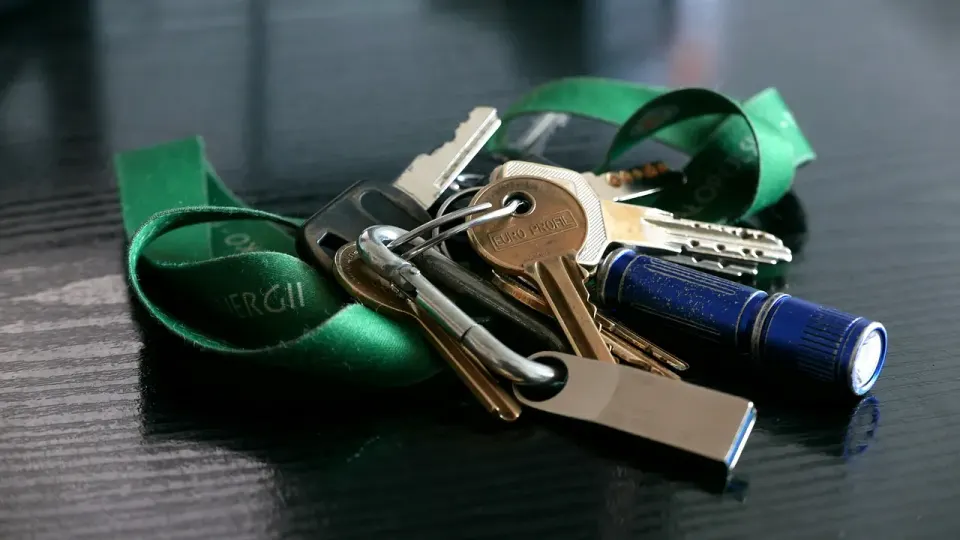
Admin accounts can change settings, add users and read everything, so they need the strongest protection. NIST advises offering or enforcing phishing-resistant authenticators for users with elevated privileges and for apps that hold sensitive data. A hardware key or passkey fits that need.
Buy two keys per administrator. Keep one on the person and one locked in the office, so a lost key is an inconvenience, not a lockout. Register both keys on every critical account on the same day.
Passkeys are the cheaper route. Many laptops and phones can store them, and they take a fingerprint or face scan instead of a code. Passkeys also work well for staff who find typing six digits annoying, which raises the odds they will keep MFA on.
Step 4: Roll Out MFA to the Whole Team

Announce the change a week ahead, then set a firm date. Run a 30-minute session where everyone turns on MFA together, with an admin in the room to fix problems. Most teams finish in a single sitting.
Make the rule cover everyone who touches company data. That means employees, part-timers, contractors and any vendor with a login. NIST's cybersecurity basics for small businesses advises phishing-resistant MFA on every account that offers it, and strong, unique passphrases of at least 15 characters.
A password manager makes both easier. It fills long passphrases and often stores passkeys as well. If you are comparing options, see how 1Password pricing works for small teams before you commit to seats.
How Can Attackers Still Get Past MFA?
MFA is strong, but it is not magic. Attackers send repeated push requests until a tired user taps approve, which is called push bombing. They also build fake login pages that capture a code in real time and use it at once.
CISA recommends number matching to block push bombardment when phishing-resistant MFA is not yet possible. It also says the FIDO protocol blocks the fake-website trick, because the key refuses to work on the wrong domain. Teach staff to deny any prompt they did not start and report it to an administrator.
What Does MFA Cost a Small Business?
For most teams the cost is close to zero. Authenticator apps are free, and many business suites include MFA on every paid plan. Passkeys on existing laptops and phones add no hardware cost either.
The real spend is hardware keys for administrators. Say a 10-person company has two admins and buys two keys each. That is four keys, and at a few dozen dollars apiece the total stays well under the price of one month of a mid-sized software bill. Check each vendor's pricing page, because a few charge extra for advanced sign-in controls.
Time is the other cost. Budget ten minutes per person for setup and 30 minutes for the group session. The monthly check adds roughly fifteen minutes.
What Should You Do About Lost Phones and Lockouts?
Plan for lockouts before they happen. Save the backup codes each app gives you, print them and store them in a locked drawer or safe. Never keep them in the same email account that MFA protects.
Name two administrators who can reset a colleague's access, and write down the identity check they must follow. A phone call to a known number beats a chat message. This stops a scammer from talking a helper into disabling MFA.
Add MFA to your offboarding checklist. When someone leaves, remove their sessions, their registered devices and their keys on the same day. Pair it with a quick review of who still holds admin rights.
What If an App Does Not Support MFA?
Some older tools offer only a password. First, ask the vendor whether MFA or single sign-on is on the roadmap, and note the answer in your tracking sheet. Then reduce the damage: use a long, unique passphrase, limit who has access and avoid storing sensitive data in the tool.
If the app holds payroll, customer or banking data, treat the missing feature as a reason to switch. A tool that cannot protect a login is a poor fit for sensitive work, however good its other features look.
How Do You Check That MFA Is Really Turned On?
Check monthly. Most admin consoles show which users have MFA enabled, and many can block sign-in until it is set up. Export that report, compare it with your staff list and chase every gap.
Look for these three gaps. New hires who joined after the rollout are the first. Shared mailboxes and old service accounts that skip MFA are the second. Apps that offer MFA only on a higher plan are the third, so check that before you buy.
Once email is locked down, set up the sender checks that protect your domain too. Our guide on how to set up SPF, DKIM and DMARC for small business email is the logical next step.
At Little iApps, we suggest treating MFA coverage as a yearly check alongside the software audit, since new tools arrive all the time and each one adds a login.
Conclusion: Start With Email and Work Down the List
Multi-factor authentication does not need a budget or an IT department. Rank your accounts, turn it on for email and money first, choose app codes or passkeys over texts, and give your admins security keys. Then save the backup codes, run the team session and put a monthly check on the calendar.
Is text message MFA good enough for a small business?
What happens if an employee loses the phone that holds their MFA codes?
Which business accounts need multi-factor authentication first?
Do security keys replace passwords completely?
Keep reading
More from the Guides desk
-
 Guides
How to Audit Software Subscriptions at a Small Business in 2026
A five-step audit for owners who suspect they are paying for software nobody opens.
-
 Guides
How to Roll Out a Team Password Manager at a Small Business
A practical rollout plan for owners with no IT department: what to look for, what it costs in 2026 and how to remove access cleanly.
-
 Guides
How to Set HubSpot Spending Limits and Swap Seats for Credits (2026)
HubSpot now caps AI credit spend by default and lets you swap idle seats mid-contract. Here is how to set the limits and pick a billing option.
Join the readership
Liked this? Let's connect.



We respect your privacy. One considered email each Thursday.