Cloud Backup vs. File Sync for Small Business: Which Do You Need?
Sync and backup look alike but protect against different problems. Here is how they compare on risk, restore speed and cost.
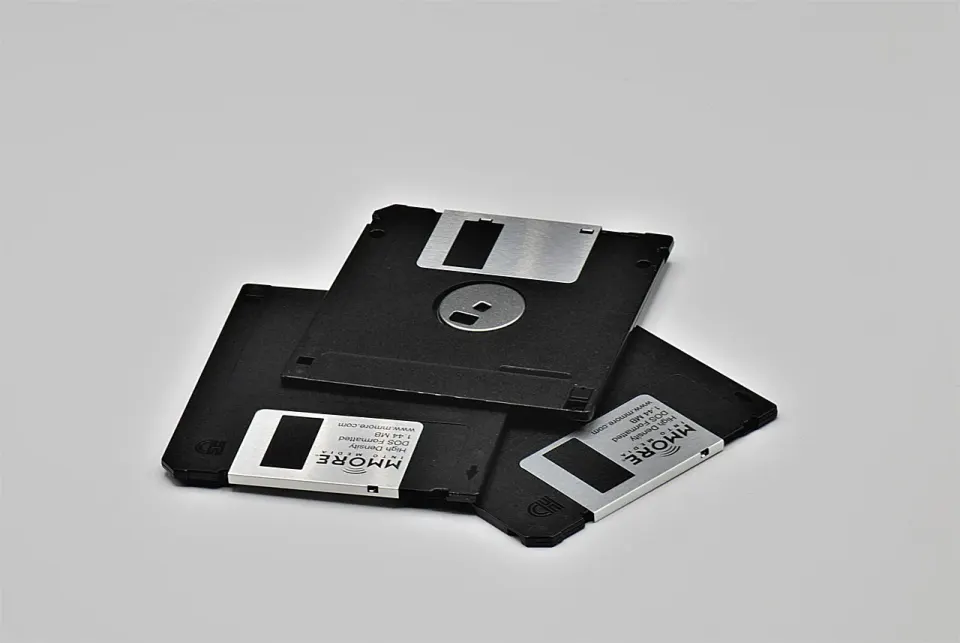
File sync keeps the same files matching across devices, so a deletion or a ransomware change spreads everywhere. Cloud backup keeps separate, versioned copies you can restore from. Most small businesses need both: sync for daily teamwork and backup for recovery. If you can afford only one, buy the backup.
This comparison is for owners and managers who assume their shared drive is already a backup. Little iApps covers business software, and this is a common mix-up in small-team setups. We compare the two on the same checklist: purpose, risks, restore speed and cost.
What Is the Difference Between Cloud Backup and File Sync?
File sync makes one folder look the same on every device you own. Cloud backup copies your data to a separate location on a schedule and keeps older versions. Sync is built for access and teamwork. Backup is built for recovery.
The key difference is what happens after a mistake. In a sync tool, deleting a file on your laptop deletes it on every other device within seconds. In a backup tool, the deleted file still sits in an earlier snapshot until the retention period runs out.
Many products blur the line. Shared drives in office suites keep a trash bin and version history, which helps for a short time. That is not a full backup, because the data still lives in one account that one bad login or one bad sync can damage.
What Does a Backup Do That File Sync Does Not?
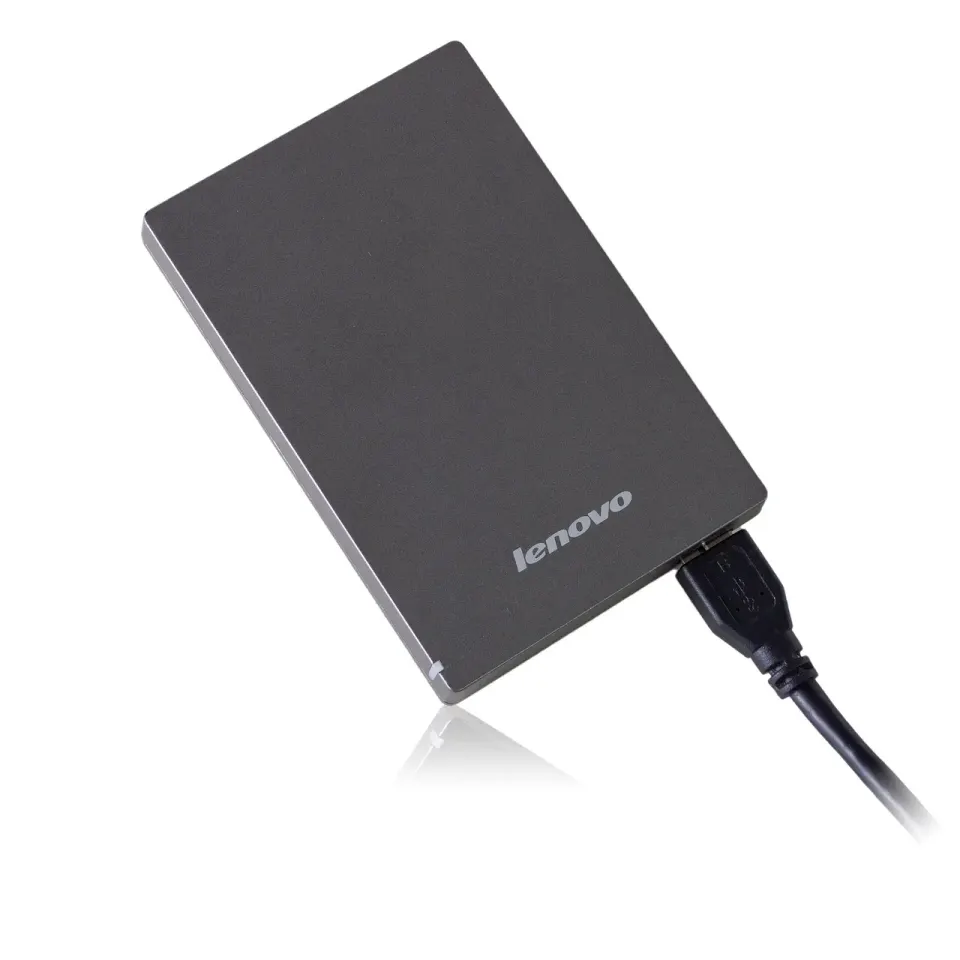
A backup stores copies apart from your live files. If the source is lost, corrupted or encrypted, the copy is untouched. That separation is the whole point, and it is what sync cannot give you.
The Cybersecurity and Infrastructure Security Agency (CISA) defines a backup as a secure copy of critical data stored separately from your primary systems. Its guide to backing up business data recommends the 3-2-1 rule: three copies, on two types of storage, with one copy offsite.
A good backup also covers things sync often skips. Think system settings, installed software, databases, mailboxes and files kept outside the synced folder. Check the product's list of what it protects before you rely on it.
How Does File Sync Work, and Where Does It Fall Short?

Sync watches a folder and pushes every change to the cloud and to your other devices. That is perfect for a team editing the same proposal. It is poor protection, because bad changes travel as fast as good ones.
Sync falls short in four common ways. It copies deletions, it copies corrupted files, it copies encrypted files, and it keeps only a short version history on cheaper plans. A shared folder that three people can wipe by accident is a convenience, not a safeguard.
Sync still earns its place. It gives remote staff the latest file, supports offline work and cuts email attachments. Keep it, but do not count it as your recovery plan. Our guide to auditing software subscriptions before they renew can help you spot when two tools overlap on storage and when you are paying twice.
How Do Ransomware and Accidental Deletes Change the Math?

Ransomware is the strongest argument for a separate backup. The National Institute of Standards and Technology (NIST) describes it as an attack that encrypts an organization's data and demands payment to restore access. Its small business ransomware guidance adds that paying is expensive and there is no guarantee the data comes back.
CISA also cites Verizon's 2025 Data Breach Investigations Report, which found ransomware in 44% of the breaches it studied. CISA calls backups your best hope of recovery from such an attack. A sync folder that has just been encrypted will happily upload the encrypted copies.
Accidental deletes are a more everyday risk than attacks. A departing employee clears a folder, a bad script overwrites a spreadsheet, or a merge goes wrong. With backup you pick the last good version. With sync alone you often have a trash bin and a prayer.
Protect both tools with strong sign-in. Backup and sync accounts hold a copy of everything, so attackers target them. Follow our steps to set up multi-factor authentication for your business apps before you trust either one.
How Fast Can You Restore From Each One?

Restore speed depends on the amount of data, your internet link and the tool. Restoring one file from sync or backup usually takes minutes. Restoring a whole laptop or server from the cloud can take hours or days on a slow connection.
Here is a worked example. Restoring 500 GB over a connection that delivers 100 megabits per second takes roughly 11 hours at full speed. Real speeds are lower, so plan for a day. A local copy on an external drive restores the same data in a fraction of that time.
That is why the 3-2-1 rule mixes media. Keep one fast local copy for quick restores and one offsite copy for disasters such as fire or theft. CISA also advises testing restores, including a partial and a full one, and being able to roll data back at least seven days.
Which Costs More: Cloud Backup or File Sync?
Sync is usually priced per user, and backup is usually priced per device or per terabyte. A team of 10 with 12 devices and 2 TB of data can see very different bills depending on which model a vendor uses. Always price the tool at your own size, not at the headline rate.
Take an illustrative case. If sync costs $10 per user per month for 10 users, that is $1,200 a year. If backup costs $8 per device per month for 12 devices, that is $1,152 a year. Prices differ widely, so check each vendor's current page and ask what storage, versions and restores are included.
Watch for extras. Some plans charge for extra version history, longer retention, server backup or restore support. The cheapest plan often keeps only 30 days of history, which is too short if a problem goes unnoticed for a month.
What Should You Ask a Vendor Before You Buy?
Ask the same short list of questions of every backup or sync vendor, and write the answers in one sheet. That keeps the comparison fair and shows gaps quickly. Six questions cover most of the risk.
- How many versions are kept, and for how long?
- Can deleted files be restored after the trash bin is emptied?
- Are backups encrypted, and who holds the keys?
- Is there an offline or immutable copy that ransomware cannot reach?
- What does a full restore cost, and how is it delivered?
- Can you export all your data if you leave?
Pay special attention to the third and fourth questions. A backup that an attacker can delete with a stolen admin login is only half a backup. Look for features such as locked retention or a separate offline copy.
Also ask for a trial and use it for a real restore, not just a test of the sign-up page. A restore drill shows the true speed, the clarity of the instructions and whether support answers quickly.
One last cost check is the cost of doing nothing. A single lost month of invoices, customer records or project files can take weeks to rebuild by hand. Compare the yearly price of backup with the hours your team would spend recreating data, and the case usually makes itself.
Cloud Backup vs. File Sync at a Glance
The table below compares the two on the same six checks. Use it as a quick filter before you read vendor pages.
| Check | File sync | Cloud backup |
|---|---|---|
| Main job | Same files on every device | Recover after loss |
| Accidental delete | Spreads to all devices | Restore an earlier version |
| Ransomware | Encrypted files can sync | Clean copy stays separate |
| Whole-device restore | Not designed for it | Usually supported |
| Teamwork | Strong | Weak |
| Typical pricing | Per user | Per device or per TB |
What Setup Should a Small Business Choose?
Run both and keep them separate. Use sync for the files people edit together, and use backup for every laptop, server and cloud account that holds business data. If a vendor shuts down or changes terms, a separate copy also gives you an exit. Our software vendor shutdown plan explains how to prepare.
NIST's cybersecurity basics for small businesses tells owners to back up data regularly and to protect and test the backups. Put a restore test on the calendar twice a year and record how long it took.
At Little iApps, we recommend picking the backup tool first and the sync tool second. A team can work around slow file sharing, but it cannot work around lost data.
Conclusion: Treat Sync as Access and Backup as Insurance
Sync and backup solve different problems. Sync gets the latest file to the right person. Backup gets your business running again after something goes wrong. Choose one of each, follow the 3-2-1 rule, protect both with MFA and test a restore before you need one.
Is Google Drive or Dropbox a backup?
How often should a small business back up its data?
What is the 3-2-1 backup rule?
How long should I keep backup versions?
Keep reading
More from the Comparisons desk
-
 Comparisons
Microsoft 365 Business Standard vs. Business Premium After the 2026 Price Increase
Standard rose to $14.00 per seat on July 1, 2026, while Premium held at $22.00. Here is the seat math and how to choose.
-
 Comparisons
Windows 10 ESU Year Two vs. Upgrading: What a Small Business Should Do
Year Two of Windows 10 Extended Security Updates costs $122 per device and the bill doubles again after that. Here is how paying compares with upgrading or going cloud.
-
 Comparisons
Microsoft 365 vs. Google Workspace for Small Business: 2026 Pricing Compared
Microsoft raised Business Basic and Standard prices on July 1, 2026. Google held its list prices. Here is what a small team now pays for each.
Join the readership
Liked this? Let's connect.





We respect your privacy. One considered email each Thursday.